
Guide contents
Characters, Locations and References
Squall Studio keeps one record of how each character and location looks and reuses it in every scene, which keeps people and places consistent from clip to clip. You can check and change them from any scene.
Scene Assets beside each scene
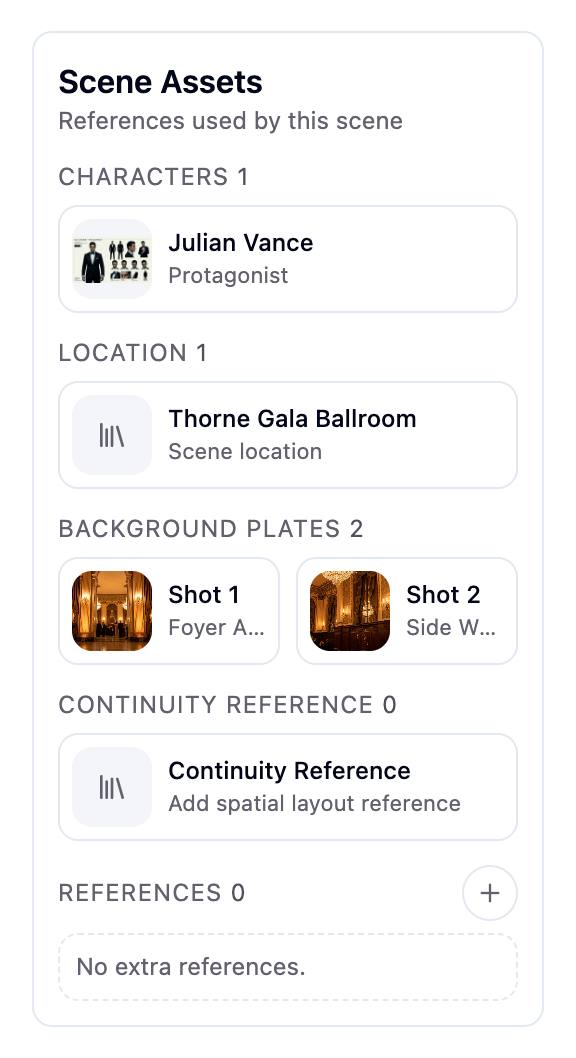
Beside every scene in the episode editor, Scene Assets lists what its clip will use:
- Characters: everyone in the scene, in the look (outfit) they wear in it.
- Location: where the scene takes place.
- Background Plates: empty views of the set, one for each shot that has one.
- Continuity Reference: an optional image of the set's layout and props.
- References: extra reference images you upload with +.
Click a character, location or background plate to open it. When a scene uses more than the card can show, View All opens the scene's full Scene Assets page.
Change a character's look
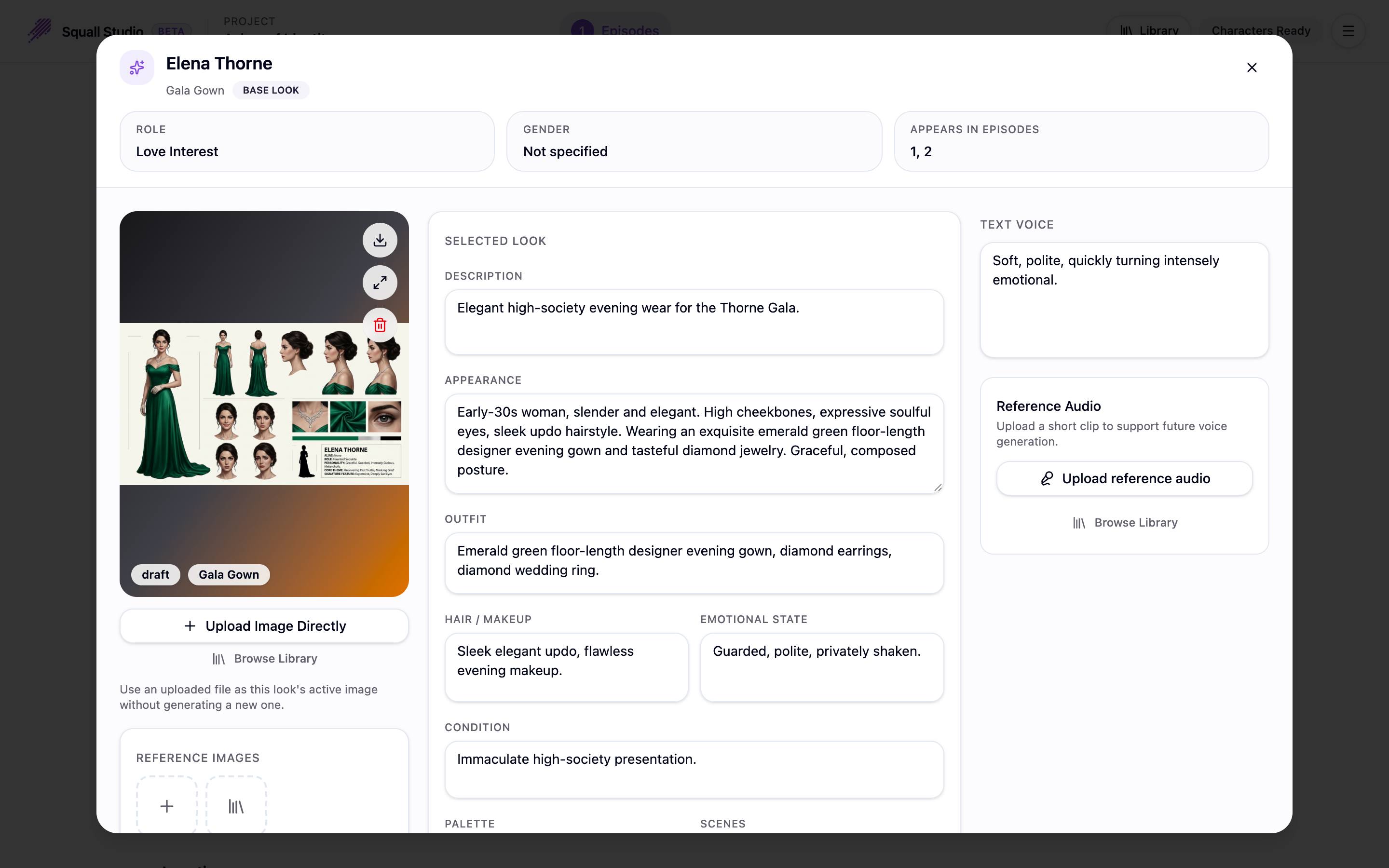
A character can have several looks, such as a gala gown and office wear. Opening a character shows a look's image and description, and the character's profile.
- Generate Character Image draws a new image from the look's description. Its Est. cost is shown beside it.
- Upload Image Directly makes your own picture the look's image, without generating one. Browse Library picks one from your Asset Library instead.
- Reference Images are pictures for the next image you generate to follow. See Use your own image for a character.
- Selected Look holds the look's Description, Appearance, Outfit, Hair / Makeup, Emotional State, Condition and Palette.
- Character Profile holds what every look of the character shares: identity, wardrobe and style, personality and story.
- Text Voice describes how the character sounds.
Use your own image for a character
You can give a character a picture you already have, such as a photo or a drawing, in two ways. Use it directly when it already shows the character as they should look on screen. Use it as a reference when you want Squall Studio to draw a new image from it, for example in another outfit or in your project's visual style.
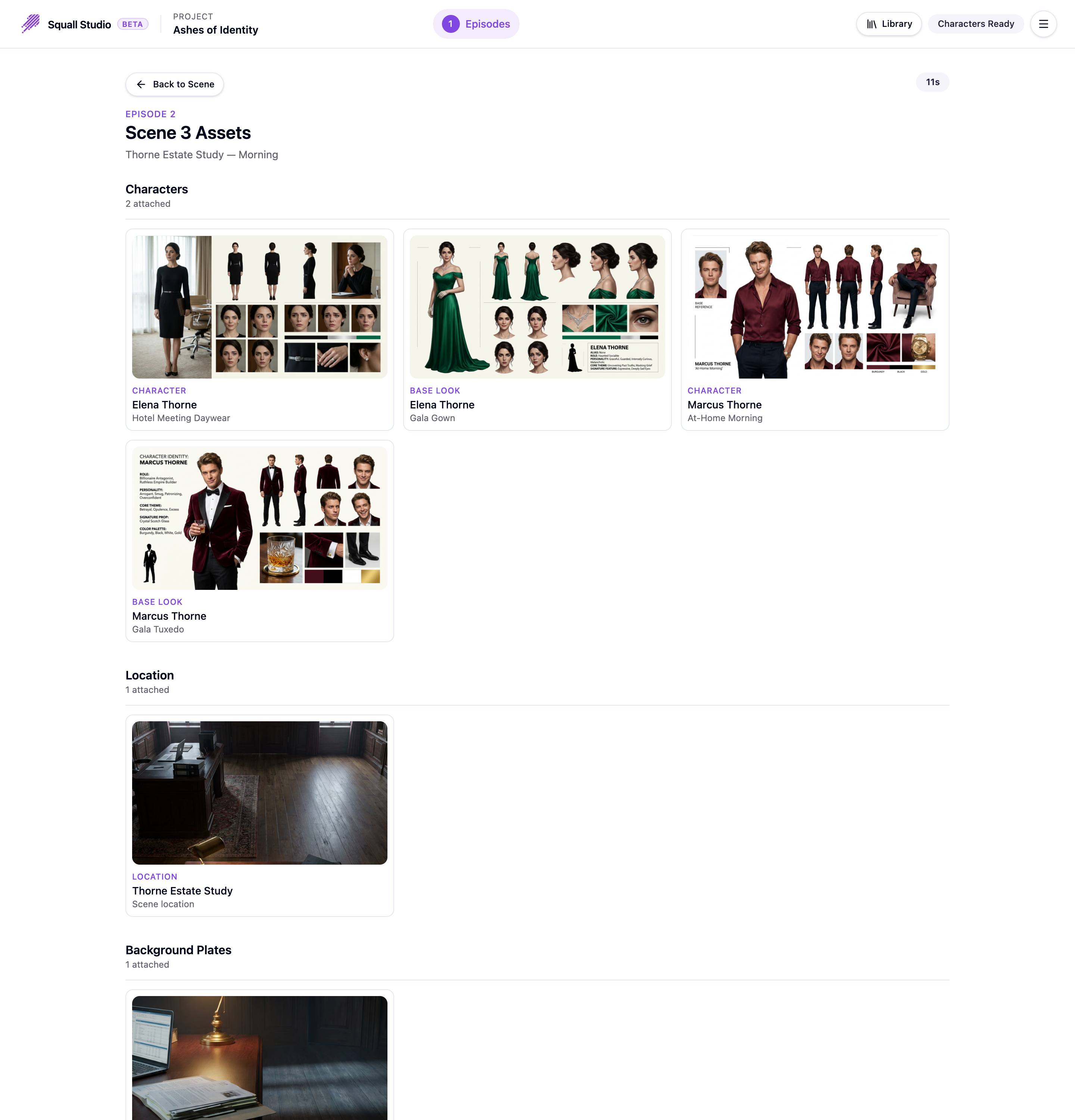
Both start in the character's window. Clicking a character in a scene opens it on the look they wear in that scene. The character's main look is marked Base Look, and on a scene's Scene Assets page each character has a Base Look card.
Use your image in the video
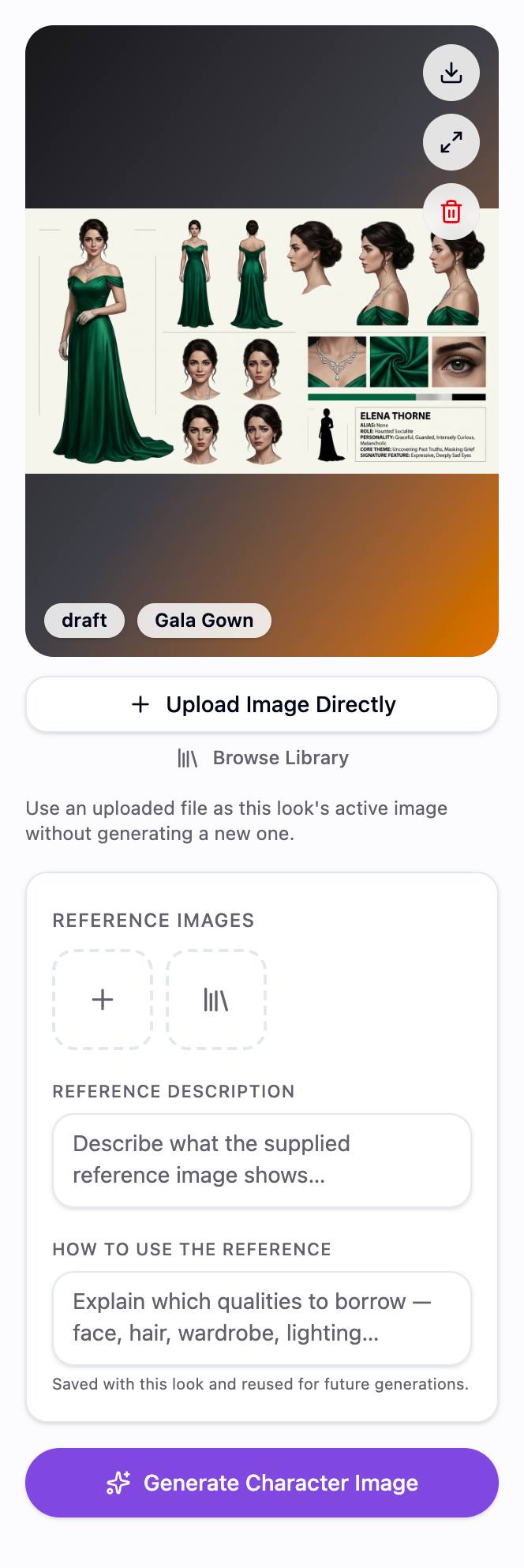
- Click Upload Image Directly and choose a PNG, JPEG or WebP file of up to 25 MB and 8,000 pixels on a side. Or click Browse Library to pick an image from any of your projects.
- The picture becomes the look's image straight away. Nothing is generated, so it's free.
Clips are made with the image of the look the character wears in each scene, as it is: no new image is drawn from it. The Base Look's image is used wherever a scene gives the character no other look. If the character, or a look they wear, has no image when you generate a scene's clip, Squall Studio draws one first and charges for it.
Use your image as a reference for a new image
- Under Reference Images, click + to upload a picture, or the library button beside it to pick one from your Asset Library. You can add several.
- Say what the picture shows in Reference Description, and what to take from it, such as the face, hair, wardrobe or lighting, in How to Use the Reference.
- Click Generate Character Image. Est. cost under the button shows the price.
The new image becomes the look's image, and clips use it from then on. The look's previous image stays in your Asset Library, so Browse Library can bring it back.
Reference images go with that one generation. They stay in the window until you close it, so you can generate again, but they aren't saved. Reference Description and How to Use the Reference are saved with the look, and are used whenever you generate it with reference images.
Change a location or background
Opening a location shows its image and the description it's drawn from. Edit the description, add reference images, and click Generate Location Image for a new image, or upload your own. Changes save automatically.
Opening a background plate shows the empty view behind that shot. Regenerate draws it again, or Generate Empty Background when the shot has none yet.
The Scene Assets page
The Scene Assets page shows everything one scene uses, at full size: Characters (each look the scene uses), Location, Background Plates, Continuity Reference and References. Click any of them to open it, and Back to Scene to return to the editor.
Reuse assets from other projects
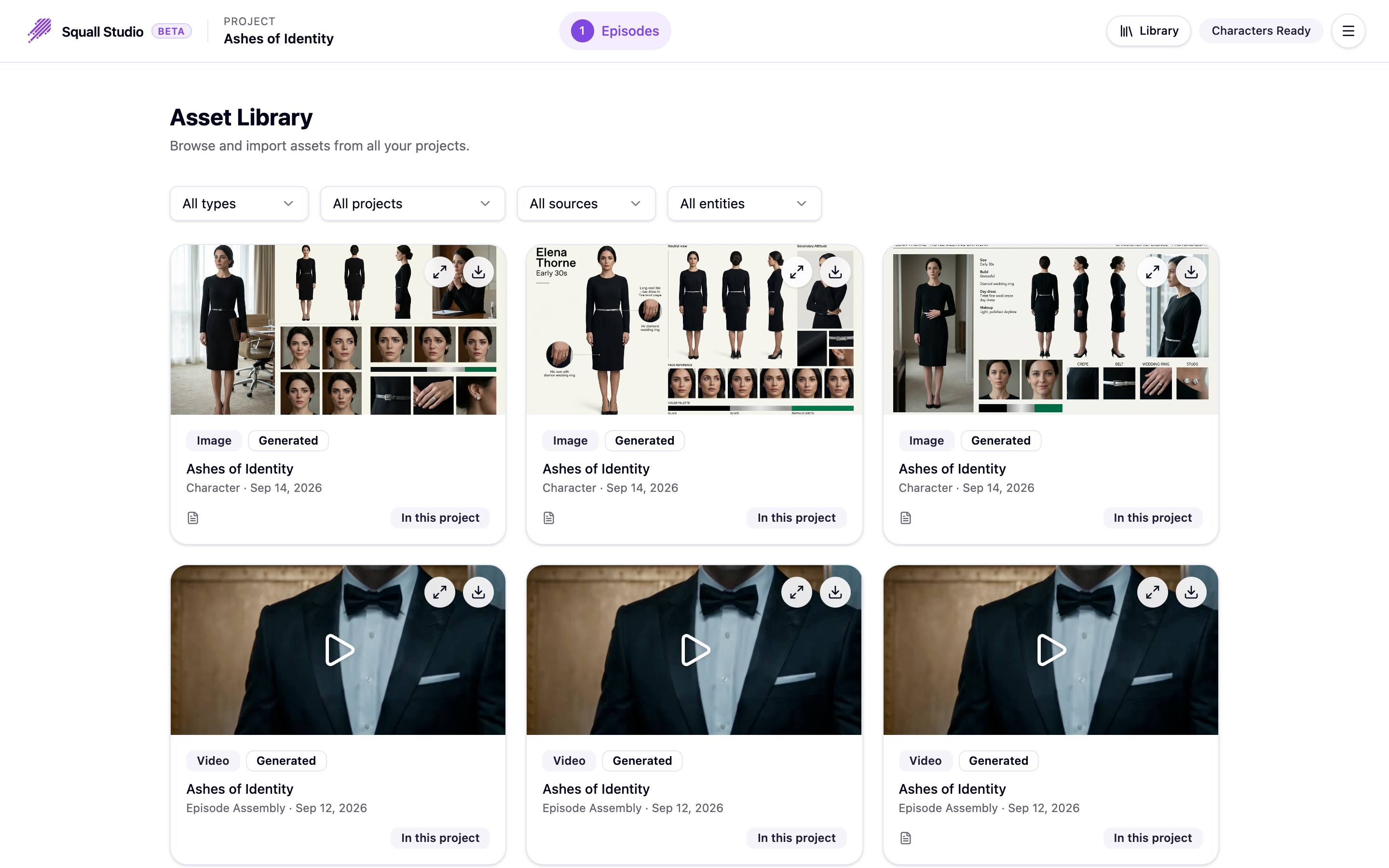
Library, in the top bar, opens your Asset Library: the images, videos and sound of all your projects. Filter by type, project, source or what an asset belongs to.
- Assets from your other projects have an Import button. Importing adds the asset to this project, ready to attach to a character or location from its window.
- Assets that already belong to this project are marked In this project.
Start from a one-line idea or a script you already have.