
Guide contents
Episodes and the Episode Editor
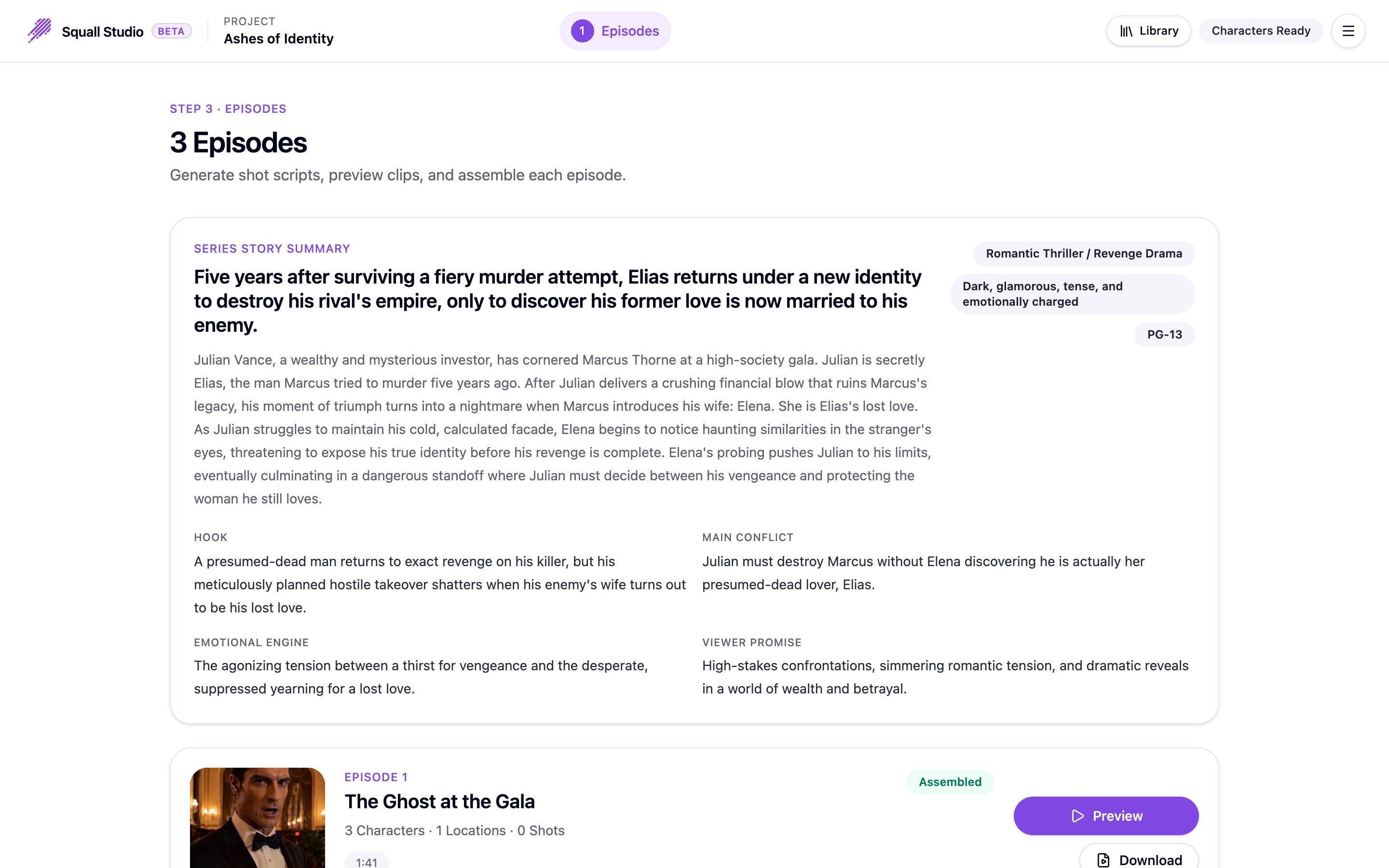
Once the script is written, the Episodes page lists your series. Each episode opens in the episode editor, where you'll do most of your work.
The Episodes page
Series Story Summary, at the top, sums up the whole story: a one-line logline, an overview, its genre, tone and rating, and its Hook, Main Conflict, Emotional Engine and Viewer Promise.
Below it is a card for each episode, with its title, how many characters and locations it uses, its running time and a short summary. A badge shows how far along the episode is; Assembled means its finished video exists.
- Click a card to open the episode in the editor.
- Once an episode is assembled, its card also has Preview, which opens it too, and Download, which saves the finished video.
Find your way around the editor
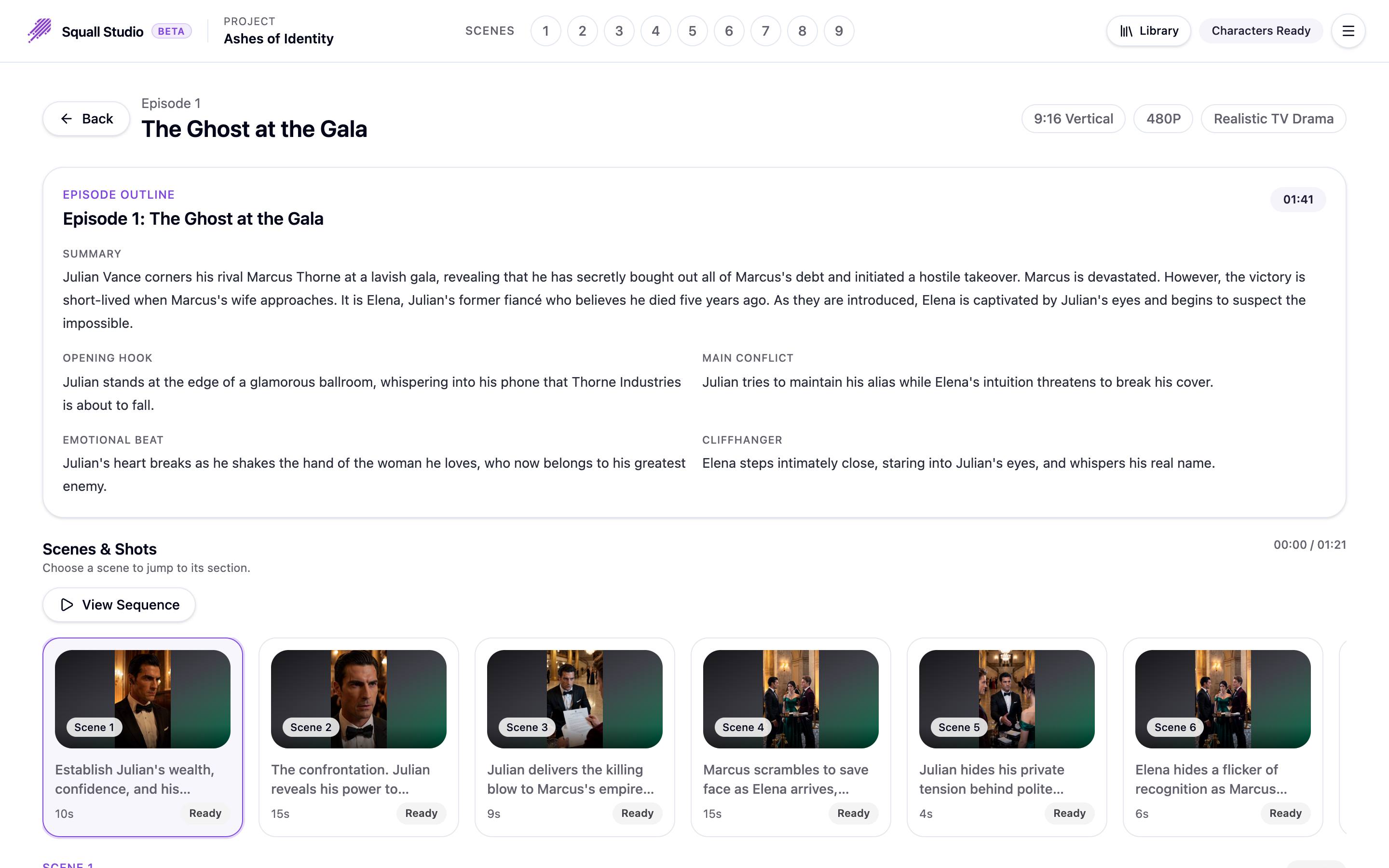
- Back returns to the Episodes page. Beside the episode's title are its screen ratio, video resolution and visual style.
- The bar at the very top lists the episode's scene numbers. Click one to jump to that scene; the highlighted number follows you as you scroll.
- Episode Outline sums up this episode: Summary, Opening Hook, Main Conflict, Emotional Beat and Cliffhanger, with its running time.
- Scenes & Shots shows a card for every scene, with its picture, purpose, length and status. Click a card to jump to the scene. View Sequence plays the whole episode; see Finish and download.
- Library, in the top bar, opens the assets of all your projects; see Reuse assets from other projects.
- Assistant, in the top bar, opens a chat that reviews and modifies your clips and answers questions about your story; see Modify clips with the Assistant.
One section per scene
Below the strip, every scene has its own section, headed by its number, its place and time of day, and a status badge.
- On the left, the Video card makes and shows the scene's clip (see Generate scene clips), and Scene Assets lists the characters, location and reference images the clip will use (see Characters and locations).
- On the right is the scene's script: its settings, its shots and its dialogue (see Edit a scene).
Ready to make your own drama?
Start from a one-line idea or a script you already have.