
Guide contents
Start a Project
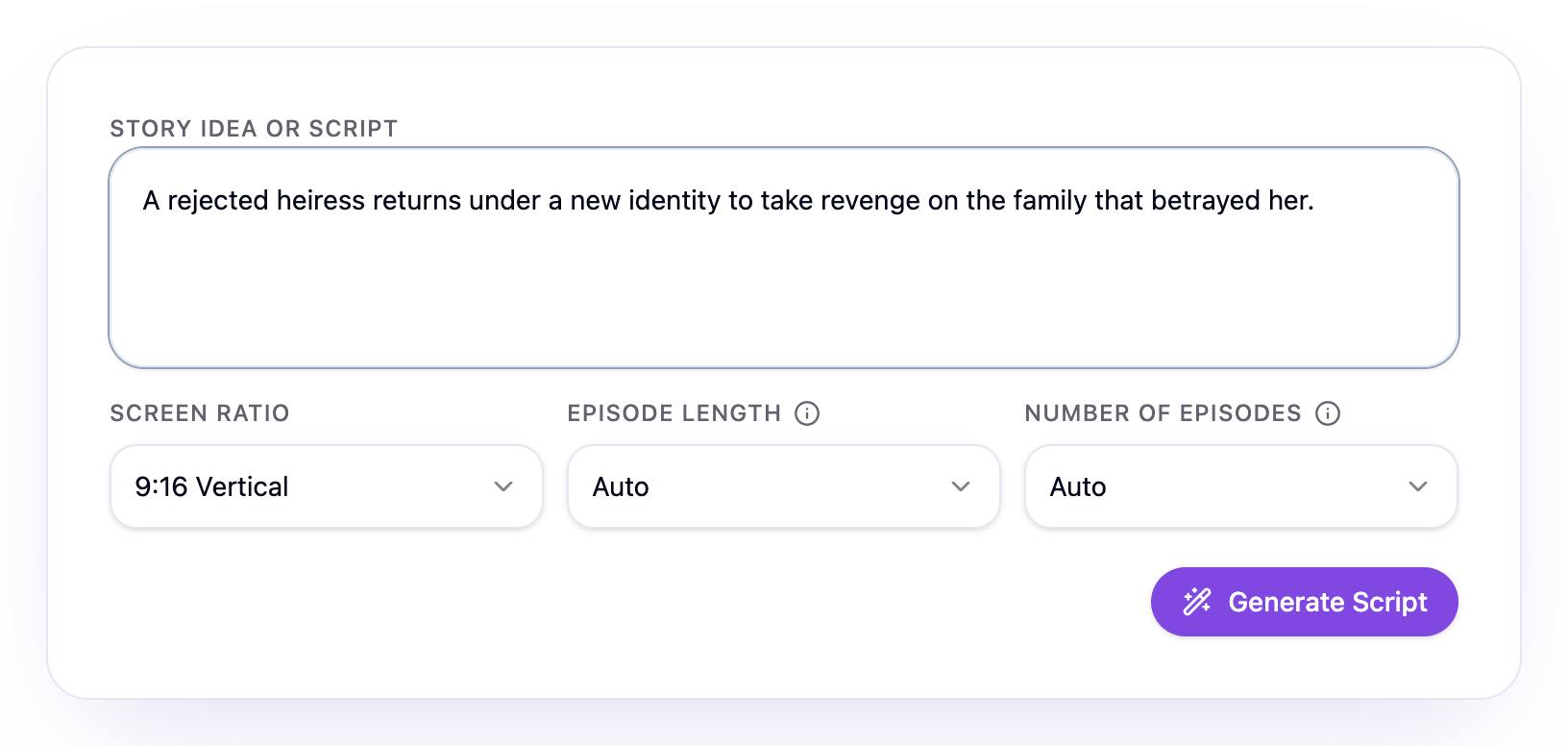
Every project starts on the home page. Describe your story or paste a script, choose the format, and Squall Studio writes the series: its episodes, its scenes and the people and places in them.
Sign in
You need an account to generate anything. If you're signed out, clicking Generate Script opens the sign-in window; you can also open the menu (☰) at the top right and choose Sign In.
- Choose Continue with Google, or sign in with your email and password.
- New here? Choose Create one, then enter a display name, your email and a password, and click Create Account.
Anything you've already typed in the story box stays there while you sign in. New accounts are asked one quick question about what matters most to them; pick your answers and click Continue.
Describe your story
Once you're signed in, the home page is Your Studio. Its New Project button takes you to the Story idea or script box, which takes either of two things:
- An idea: a sentence or two about who wants what, and what stands in their way. For example: “A rejected heiress returns under a new identity to take revenge on the family that betrayed her.”
- A script: paste a screenplay, an outline or chapter text, and Squall Studio structures it into episodes and scenes.
Choose the format
- Screen ratio: 9:16 Vertical for phones (the default), 16:9 Landscape or 1:1 Square. Choose it now: the episode editor shows the ratio but can't change it.
- Episode length: with Auto, every scene runs as long as its action and dialogue take, and an episode is its scenes added together, up to about 5 minutes. A length from 15 seconds to 5 minutes is a target: the writer aims for it, but each scene still runs as long as it needs, so an episode can come in shorter or longer.
- Number of episodes: with Auto, the writer splits the story where it naturally breaks, into 1 to 3 episodes. A number from 1 to 3 gives you exactly that many.
The ⓘ beside each label explains these choices in the app too.
Generate the script
- Check Est. cost under the button. When either episode setting is on Auto, the estimate is for 3 episodes of 1 minute each.
- Click Generate Script. Squall Studio creates the project and opens its Episodes page.
- Wait while it writes. The page shows Script is being generated, then Characters are being generated. It usually takes a few minutes, and longer for a long story. When it's done, the series summary and your episodes appear.
You can leave the page while it works. Your project waits under My Projects on the home page. Next: Episodes and the episode editor.
If generation fails
If the script can't be written, the Episodes page says Script generation failed. Choose Generate the script again to go back to the home page and try again, or Contact Support to tell us what happened.
Start from a one-line idea or a script you already have.