
Guide contents
Watch, Add Music and Download
Once your scenes have clips, play the episode from start to finish, give it a soundtrack and download the finished video.
Watch the whole episode
- Click View Sequence, under Scenes & Shots at the top of the episode editor.
- Squall Studio joins the scenes' clips, in order, into one video; the button reads Assembling... meanwhile. The episode then plays in the Preview window.
You need at least one clip, and scenes without one are left out. Whenever a clip changes, the episode is joined again the next time you click View Sequence, so it always shows your latest clips.
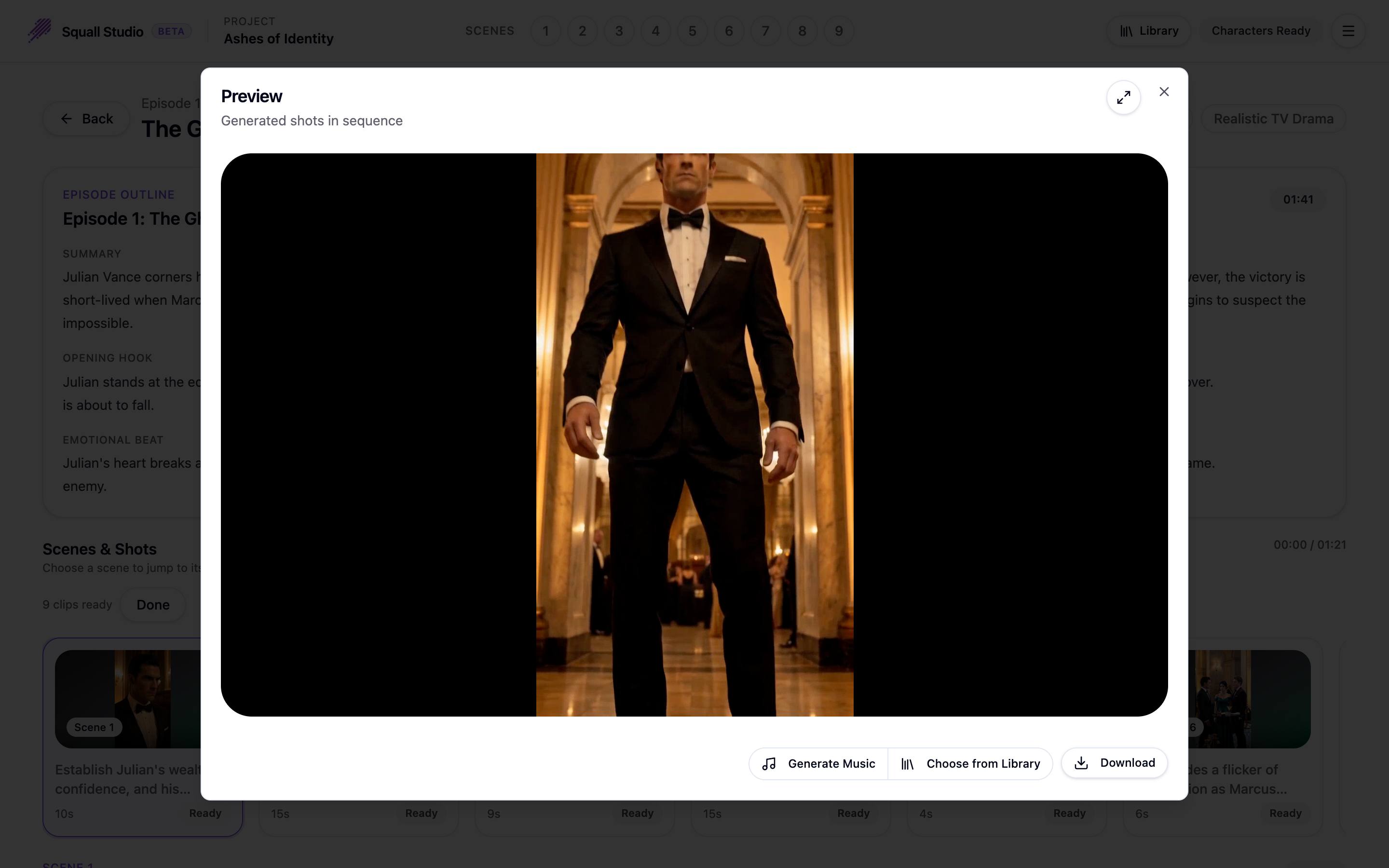
Add music
In the Preview window, below the video:
- Generate Music composes a soundtrack for the episode and adds it. Its price, Est. music cost, is shown beside it. The button reads Generating Music... until the music is ready.
- Choose from Library adds music you already have in your Asset Library instead.
Download the episode
- Download, in the Preview window, saves the episode as a video file named after the episode.
- Once an episode is assembled, its card on the Episodes page has a Download button too.
- To keep a single scene's clip, use Download in that scene's Preview window; see Generate scene clips.
Ready to make your own drama?
Start from a one-line idea or a script you already have.