
Guide contents
Generate Scene Clips
Each scene becomes one video clip of 4 to 30 seconds, made from its script, its shot plan and its scene assets. You make clips one scene at a time, in the Video card beside each scene.
Generate a scene's clip
- Pick the resolution in the Video card: 480p, 720p or 1080p. It's one setting for the whole project, so changing it in one scene changes it in every scene. New projects start at 480p, and higher resolutions cost more per second.
- Check Est. cost under the button: the price of a clip as long as the scene, at that resolution.
- Click Generate. The card shows Generating... while the clip is made, which can take a few minutes. Meanwhile you can keep editing, and start other scenes.
- When the clip is ready, the card shows it.
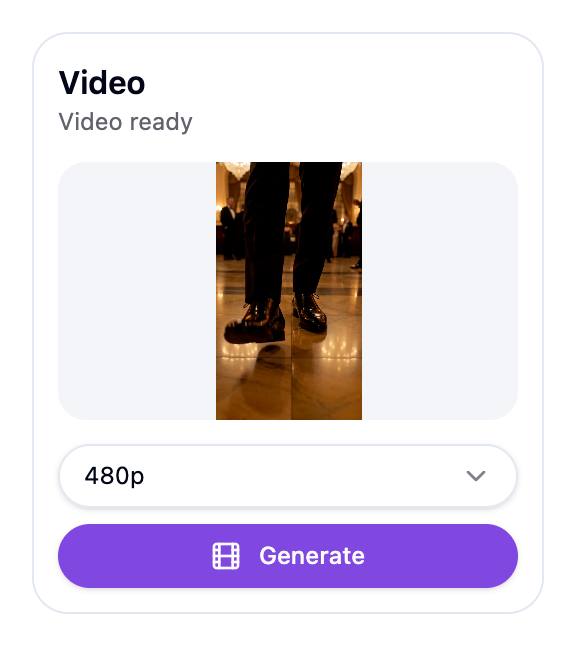
Generating a scene again makes a new clip that replaces the old one, and is charged like the first. Do it after you edit a scene to see your changes on screen.
What a clip costs
Clips are priced by the second, so a longer scene or a higher resolution costs more. Est. cost always shows the price before you click.
Preview, replace or download a clip
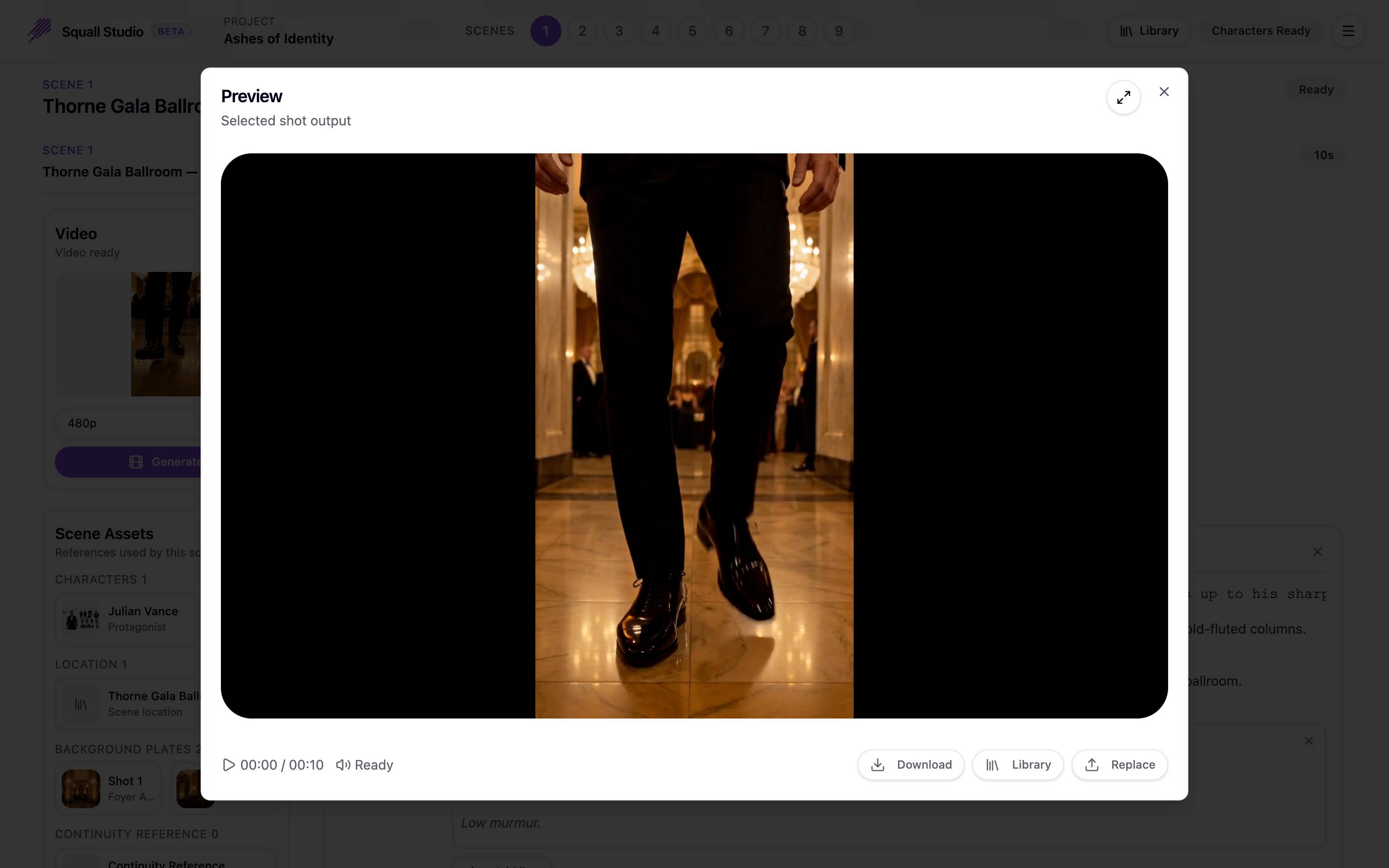
Click a scene's video to open it in the Preview window. From there:
- Download saves the clip.
- Library swaps in a video from your Asset Library.
- Replace swaps in a video file of your own.
Before a scene has a clip, its Preview window offers Upload Video, so you can use your own footage instead of generating it.
If a clip fails
If a clip can't be made, the scene's Preview window says Generation failed, with Retry to try again and Contact Support to tell us about it. The credits held for a failed clip go back to your balance. You can also ask the Assistant why it failed.
Start from a one-line idea or a script you already have.